

ChatGPT Ads can only optimise for sales or leads if your site tells OpenAI when they happen. Conversion-optimised campaigns learn from the events your pixel sends, so a weak setup means the bidding learns from incomplete data.
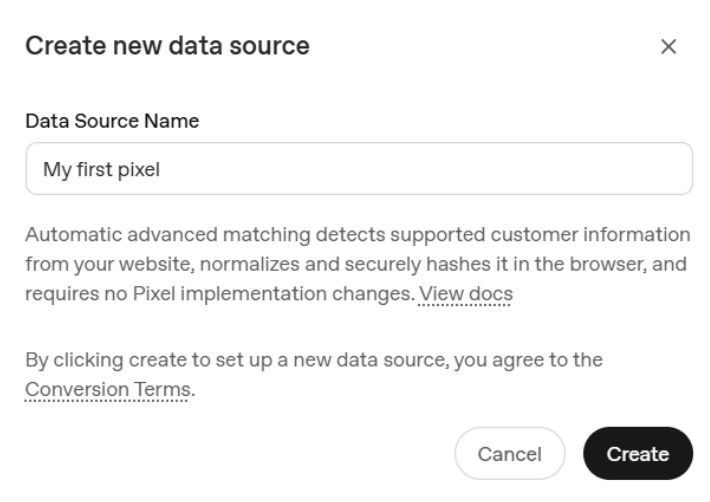
We recently set up ChatGPT Ads conversion tracking for a Shopify fashion brand, using Google Tag Manager for the storefront and a Shopify custom pixel for checkout. This guide walks through that setup step by step, including the parts the documentation doesn’t warn you about.
It covers:
- How ChatGPT Ads measurement works
- Setting up the pixel and events through Google Tag Manager
- Tracking checkout and purchases on Shopify
- Testing, diagnostics and the mistakes to avoid
How ChatGPT Ads measurement works
Everything ties back to one Pixel ID, which you create under Conversions in OpenAI Ads Manager. Events reach that ID in one of two main ways:
- Measurement Pixel (browser): a JavaScript SDK, called with oaiq(“measure”, …), that fires from the visitor’s browser.
- Conversions API (server): events sent from your server, which survive ad blockers and browser restrictions. Use it alongside the pixel, with a shared event_id so the same conversion isn’t counted twice.
When someone clicks a ChatGPT ad, the pixel captures an attribution ID from the landing page URL and stores it in a first-party cookie. Later events on the site are matched back to that click.
Consent: the pixel tracks by default. Where consent is required, call oaiq(“consent”, false) before initializing the pixel, then oaiq(“consent”, true) once the visitor agrees. Setting consent to false also removes the pixel’s cookies. This matters for audiences in the UK, EU and India.
OpenAI defines standard events, and each one uses a fixed data shape. These are the ones an ecommerce store needs:
Event | When it fires | Data shape |
page_viewed | An important page loads | contents |
contents_viewed | A product is viewed | contents |
items_added | Something is added to cart | contents |
checkout_started | Checkout begins | contents |
order_created | A purchase completes | contents |
Lead-generation sites use lead_created instead, with the customer_action shape.
Step-by-step: storefront tracking with Google Tag Manager
If the site already runs GTM, the quickest route is the OpenAI Ads Measurement Pixel template (publisher: openai) from the GTM Template Gallery, which is the one we used. It replaces the setup code and event snippets with form fields. Stape also offers a template, “OpenAI Ads Pixel by Stape”, which is configured differently; the steps below apply to the OpenAI Ads Measurement Pixel template.
- Create the data source. In Ads Manager, go to Conversions and create a data source. Copy the Pixel ID it generates.
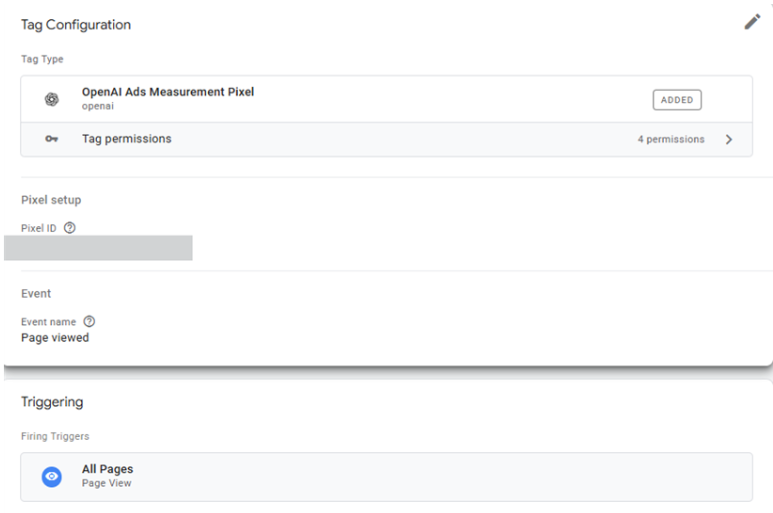
- Add the page view tag. Create a tag from the template, enter the Pixel ID, set the event to page_viewed and fire it on All Pages. With this template, one tag both loads the pixel and sends the page view.
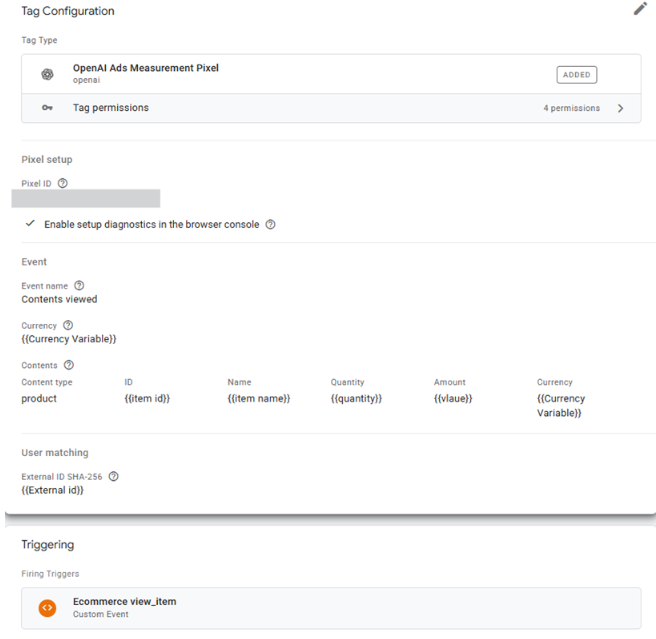
- Add the product view tag. Create a second tag with the event contents_viewed, fired on your product view data layer event (usually view_item). Never fire it on All Pages, because the product data doesn’t exist yet when the page first loads.
- Map the product data. Fill the contents fields with data layer variables: content type product, plus ID, name, quantity, amount and currency.
- Convert the amount. Send amounts in minor units with a Custom JavaScript variable, so a $660 product goes out as 66000:
function() {[Text Wrapping Break] return Math.round({{Item Price}} * 100);[Text Wrapping Break]}
- Repeat for add to cart. Copy the product view tag, change the event to items_added and attach your add-to-cart trigger.
A Shopify-specific catch: in our rollout, the data layer came from Shopify’s Google & YouTube app, which pushed events in gtag format. GTM stores those parameters under eventModel, so our variables needed paths like eventModel.value and eventModel.items.0.id, not ecommerce.value. With the wrong path, the variables return nothing and events arrive with empty product data.
Tracking checkout and purchases on Shopify
GTM can’t see a Shopify checkout. Theme code, including a GTM container in theme.liquid, doesn’t load on checkout or thank-you pages, and in our rollout the Shop Pay checkout loaded on shop.app, outside the storefront. Storefront events work, but the purchase, the event that matters most, never fires.
The fix is a Shopify custom pixel, which Shopify runs throughout checkout. Add it under Settings → Customer Events → Add custom pixel, and send only the checkout events from it, since GTM already handles the storefront.
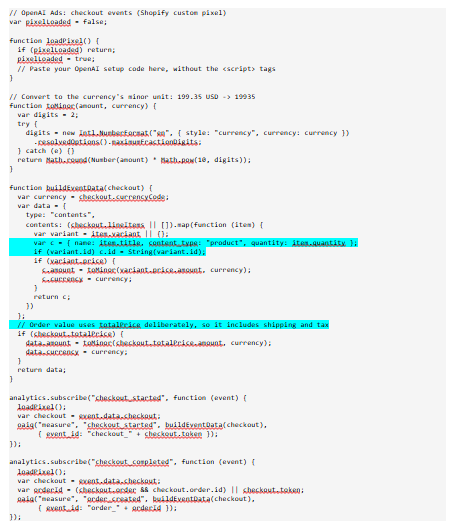
Three details make this work reliably:
- The pixel loads only at checkout. Shopify also runs custom pixels on storefront pages, so loading on demand stops it initializing alongside GTM.
- Each event carries an event_id. In our rollout, Shop Pay loaded checkout twice, firing checkout_started twice for one click. A stable ID lets OpenAI keep the first and ignore the repeat.
- Product IDs must match the storefront. Use the same ID format your GTM tags send, so product views and purchases refer to the same items.
To improve matching, you can also pass a SHA-256 hash of the customer’s email by calling oaiq(“init”, …) again with a user object before the order event. OpenAI’s documentation sets out the normalisation rules; never send the raw address.
A caution on attribution: Shopify custom pixels run in a sandbox, and we haven’t yet confirmed that the checkout pixel can read the attribution cookie set on the storefront. Events arriving in Ads Manager doesn’t prove they’re credited to your campaigns. Test this with a real ad click, and if orders aren’t attributed, send order_created through the Conversions API instead of the pixel, passing the captured oppref value through with the order. Don’t send the same event_id from both: OpenAI keeps the first event it receives and ignores later duplicates, so an unattributed pixel event would cause the server event to be dropped.
Testing and verifying the setup
A tag showing “Fired” in GTM only means it ran, not that OpenAI received anything. Verify in Ads Manager instead.
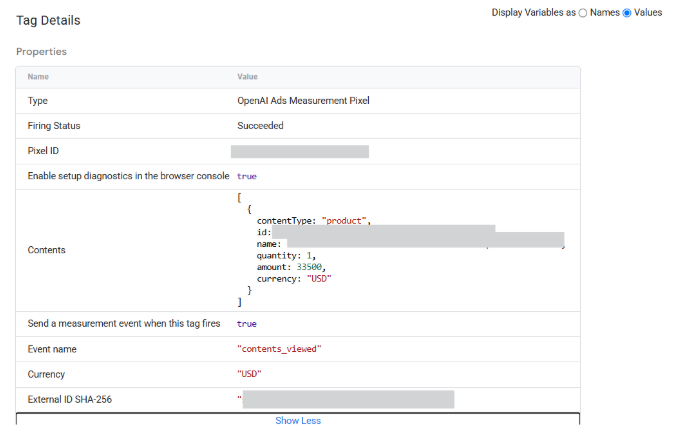
- Watch the Event Stream. Under Conversions → Event Stream, browse the store and confirm page_viewed and contents_viewed arrive.
- Check the payload. Click an event and read its Event Data JSON. Amounts should be in minor units, and contents should list real product details, not an empty array.
- Place a test order. Use Shopify’s test payment mode or a 100% discount code, then confirm checkout_started and order_created arrive with the correct total.
- Create the conversion events. The Conversion Events tab lists only the events you’ve defined as conversions, not everything the pixel sends. Add Order Created at minimum. A conversion-optimised campaign uses exactly one standard event as its goal, custom events can’t be used, and the event can’t be changed after the campaign is created, so choose it before launch.
- Confirm attribution. Once a campaign is live, click your own ad and place a test order. An event arriving doesn’t prove it’s credited to the campaign.
In our rollout, the Diagnostics tab showed two medium-severity warnings on the pixel-only setup. Neither meant tracking was broken:
Warning | What it means | What to do |
No recent server-to-server events | Conversions come from the browser only | Add the Conversions API if spend justifies it |
Some events are missing user data | Most events are anonymous page and product views | Check identifier coverage on Order Created specifically |
Common mistakes to avoid
These are the issues we hit or checked for during a real Shopify rollout:
Mistake | Symptom | Fix |
Amount sent in major units | A $660 product reported as $6.60 | Multiply by the currency’s minor unit (×100 for USD) |
Product view fired on All Pages | contents arrives empty | Fire on the view_item data layer event |
Wrong data layer path | Variables return undefined | Use eventModel. paths for gtag-style pushes |
Wrong value entered in a template field | content_type arrived as “integer” | Set content type to product |
Purchase tag in theme-installed GTM | No order_created in the stream | Move checkout events to a Shopify custom pixel |
Pixel installed twice | Duplicate events and inflated counts | Keep one install per event, one data source |
No event_id on checkout | checkout_started fired twice per click | Key it on the checkout token |
One more point for agencies: keep UTM parameters on ChatGPT ad URLs as well. GA4 then gives you an independent view of the same traffic to compare against Ads Manager.
Conclusion
A working ChatGPT Ads setup needs three things: the pixel on the storefront, checkout events that actually fire, and values in the format OpenAI expects. On Shopify, that means a GTM template for browsing events and a custom pixel for checkout. Add the Conversions API once spend grows and every lost conversion costs more.
Pyrite Digital sets up and audits conversion tracking for ChatGPT Ads, Google, Meta and GA4. If you’re launching on ChatGPT Ads and want tracking the bidding can trust, get in touch with our analytics team.